
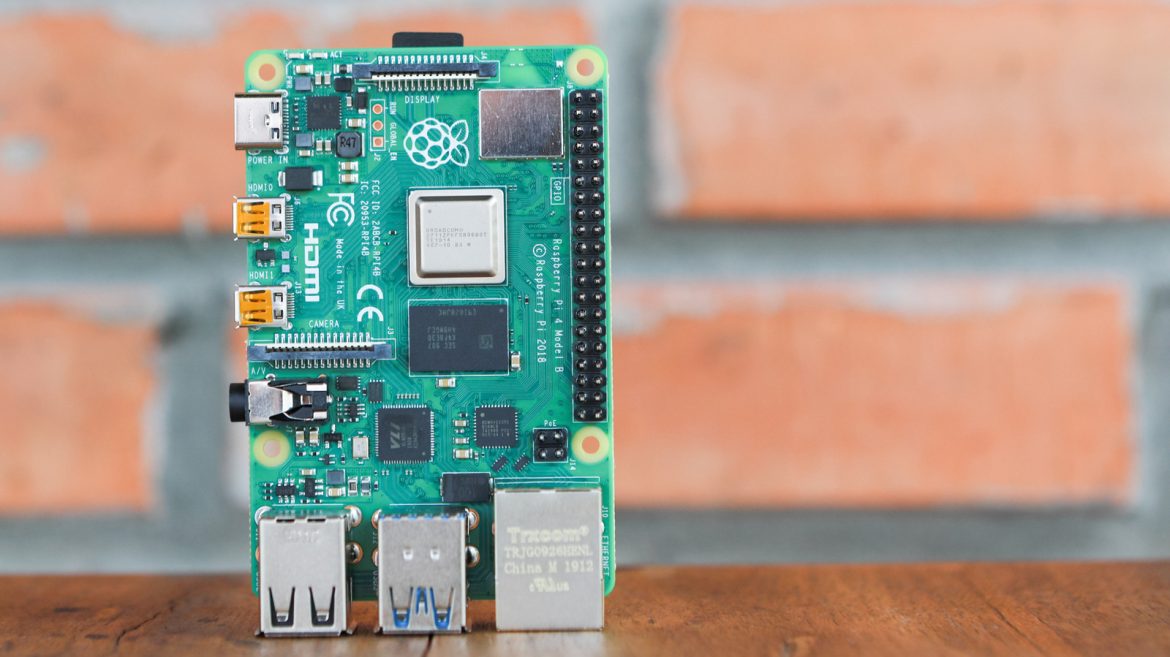
The latest version of Raspberry Pi, the Pi 5, is packed with features that make even more clever projects possible. It comes complete with a faster chip to help with smoother multi-camera builds, PCI Express to accommodate machine learning setups, and a dual-display port to support a dual-screen digital kiosk station. Even without these features, though, the older Raspberry Pi models are capable of a wide range of projects too.
But whichever model you go for, there’s one important thing to keep in mind: the board itself is only one part of the equation. Before you can actually get started with your cool Raspberry Pi projects, you’ll need more than just the SBC. Yes, working with a Raspberry Pi means having a set of essential gadgets that are either used directly in the project or to optimize its performance. Here are some of those key devices every Raspberry Pi enthusiast should have.
Touch Display 2
While having the Raspberry Pi connected to a monitor, keyboard, and mouse is a beginner-friendly way to work with the Pi, this sacrifices portability. You can’t just haul around the entire setup whenever you need to. In such cases, you’d want something more compact and mobile. That’s where the Touch Display 2 comes to your rescue.
This touchscreen is an official Raspberry Pi accessory, featuring a 720×1280, 24-bit RGB TFT LCD with an anti-glare finish. It can handle five-finger gestures, and like any other touchscreen, comes complete with an on-screen keyboard for convenience. By default, the Touch Display 2 is in portrait mode, so your Raspberry Pi will initially look like a tablet. If you prefer the standard computer setup, though, you can rotate the screen to landscape mode at any time.
You can get the Touch Display 2 in the five-inch or seven-inch variant. Both are ideal for display projects like smart home hubs, retro gaming consoles, and digital picture frames. But they can also easily replace your at-home monitor if you just want to use your Raspberry Pi as a computer.
SSD Kit
The Raspberry Pi already performs well with just a microSD card, but when running more demanding applications or if you need faster processing, you’re better off switching to an SSD. An SSD can replace your microSD card completely, meaning you can run the OS straight from it, store files there, and rely on it for processing. In turn, you get faster boot times, improved performance, and improved overall reliability.
If you have a Raspberry Pi 5, the more efficient way to integrate an SSD into your setup is with the official SSD Kit. It comes with the NVMe SSD itself and the Raspberry Pi M.2 HAT+ it will be connected to. The included SSD is an official Raspberry Pi SSD, so you’re sure it will work smoothly with your board. It’s also PCIe Gen 3-compliant and available in 256GB or 512GB capacity. The HAT+, on the other hand, serves as the adapter for the SSD. It plugs directly to the Raspberry Pi through the PCIe connector and fits perfectly, even with the Pi 5 Active Cooler installed.
This SSD Kit features a peak transfer rate of 500MBps, making it one of the best Raspberry Pi accessories for supercharging your project. Unfortunately, the HAT+ only includes a single PCIe lane, which is already occupied by the SSD. You can always remove it and replace it with other accessories, like an AI acceleration module or a larger Raspberry Pi SSD (also available in 1TB).
Camera Module 3
A camera gives your Raspberry Pi the ability to see, record, and interact with its surroundings. It’s actually one of the core components in many of the coolest Raspberry Pi projects, ranging from a simple time-lapse setup to a more complex ball-balancing robot. While there are plenty of Raspberry Pi camera options available from the official store alone, the Camera Module 3 is a good balance between performance and cost.
It’s a compact camera fitted with a 12MP IMX708 Quad Bayer sensor. It features an HDR mode of up to 3MP output and can record full HD videos at 50fps. It also includes autofocus, which you can configure via software commands. Like its predecessor, the Camera Module 3 works with the libcamera software stack. So if you’ve used other official Raspberry Pi cameras before, you’d be familiar with the commands. To install the Camera Module 3, simply connect it using the included CSI ribbon cable. It’s compatible with any Raspberry Pi board, but you’d need an adapter to pair it with Raspberry Pi Zero models.
In terms of options, the Camera Module 3 comes in four versions: standard 75-degree view, wide-angle 120-degree view, standard infrared, and wide-angle infrared. Both infrared versions let you use the camera for night applications, while the wide-angle version can be handy when you want to capture more of the surroundings, like for home surveillance and mobile robots.
Keyboard and Hub
Many beginner-friendly Raspberry Pi projects start with connecting the board to a monitor, a wired keyboard, and a mouse. This is the easiest way to set up and program the Pi for whatever project you’re interested in. The problem is, all these peripherals will use up the limited USB ports on the SBC, which you might need for more important parts of the project. Fortunately, Raspberry Pi offers a solution to this: the Keyboard and Hub.
True to its name, the Keyboard and Hub is both a keyboard and a hub rolled into one. It packs in three extra USB 2.0 ports for your other Raspberry Pi accessories, like a webcam, flash drive, and mouse. The other port on the back of the keyboard is a microUSB, designed to connect the keyboard to one of the Raspberry Pi’s built-in USB ports.
The keyboard itself looks like a typical QWERTY layout with 79 keys overall (78 for the US variant and 83 for the Japan variant), including Num Lock, Caps Lock, and Scroll Lock, along with their corresponding LED indicators. In the Japanese version, the keys are even printed with Japanese characters for ease of use. Since the Keyboard and Hub isn’t full-size, it’s compact enough to carry and use on the go. Like most other Raspberry Pi accessories, this essential gadget comes in the standard raspberry and white color, but you can opt for a black and grey model as well.
Active Cooler
Like any other computer, the Raspberry Pi heats up during operation. You might not need to add any sort of cooling to your setup if you’re just using the Pi for simple tasks like writing a document or controlling an LED. In those cases, proper ventilation will do the trick. But once you start running intensive projects, that’s when you’ll need a cooling solution like the Raspberry Pi Active Cooler.
Specifically designed for the Raspberry Pi 5, the Active Cooler combines a blower fan and an aluminum heatsink. The fan is temperature-controlled and automatically turns on at 140°F (60°C). It will then increase its speed once temperatures reach 153.5°F (67.5°C) and finally switch to the max setting at 167°F (75°C). At full capacity, the fan can deliver 1.09 CFM airflow and spins up to 8,000 RPM.
The Active Cooler connects directly to the Raspberry Pi’s dedicated FAN connector. Once installed, the heatsink sits on top of the wireless module and other components, while the fan is over the RP1 input-output controller chip and the main processor. Unlike other Raspberry Pi accessories, the Active Cooler is a permanent installation. You can’t uninstall it without damaging the pre-applied thermal pads and push pins. Don’t worry, though, as you can always unplug the fan if you’re sure you won’t be needing it. But the unit itself should still remain on the Pi.
