
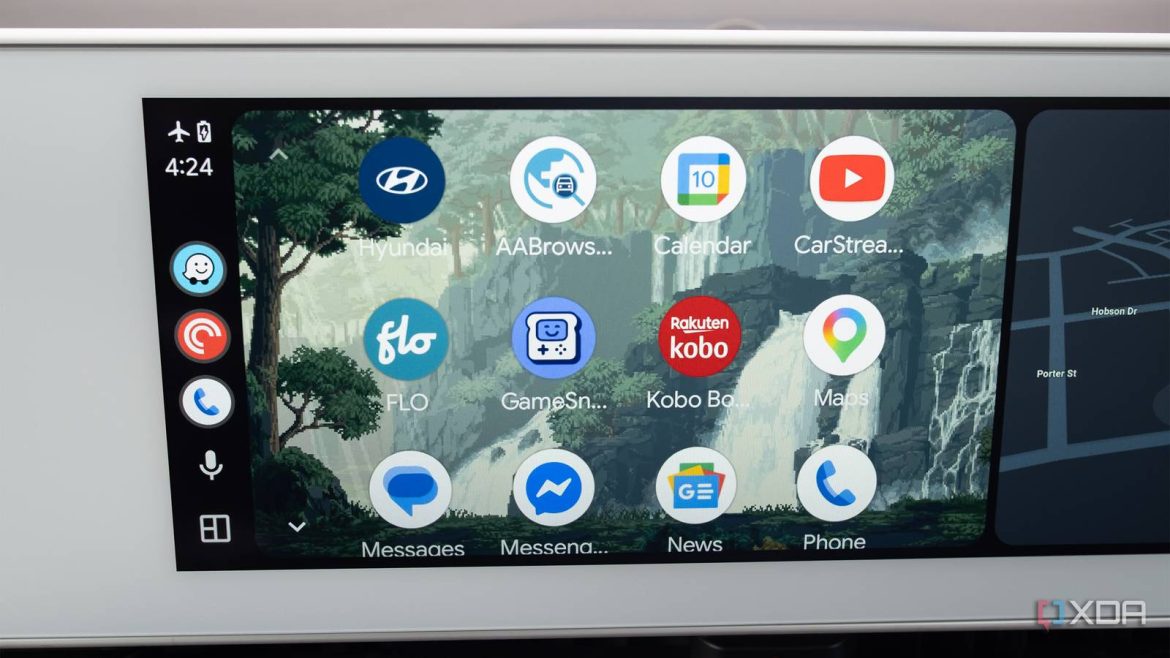
Since I’ve been covering Android Auto a lot for XDA over the past few months, it’s quickly become my go-to in-car infotainment system platform.
Over time, I’ve learned to tweak the platform to run exactly how I want by managing notifications better, removing apps I don’t use from the home screen, getting Home Assistant up and running, and more, but when I finally came across Android Auto’s Developer Mode after enabling it, there were a few very useful settings I wish I had enabled way earlier.
While these settings don’t fundamentally change the platform, they include welcome quality-of-life features, and in some cases, add new functionality to Android Auto that Google never intended.
First up, you need to enable Android and Android Auto’s Developer Mode
This opens up several new features

To change the settings that I outline below, you’ll need to enable Android’s and Android Auto’s Developer Options individually. This process isn’t difficult, but it does take several steps and a few minutes of your time.
To enable Android’s Developer Mode, follow the steps below:
- Open the Settings app on your Android device
- Tap About Phone.
- Open Software Information (with my Pixel 10 Pro, this option is on the main About Phone screen).
- Find your phone’s Build Number, and tap it seven times in a row.
- If you’ve done this correctly, you’ll see a message stating Developer Mode Enabled (you’ll see a notification that you have only three taps left when you’re close).
Next up, you need to enable Android Auto’s Developer Mode:
- Open the Settings app on your Android phone.
- Navigate to Connected Devices (it’s the second option).
- Tap on Android Auto (on my Pixel 10 Pro, I also need to tap Connection Preferences first).
- Scroll down and tap Version until Developer Settings are enabled (you’ll see a notification that you have only three taps left when you’re close).
If you’re encountering Android Auto disconnection issues, change the Default USB Configuration
It’s time to dive into Android’s developer options

If you’re running into disconnection issues with Android Auto, and you’ve tried simple solutions like using a different USB-C cable and cleaning your smartphone’s and vehicle’s USB port, you can also try changing your phone’s Default USB Configuration to File Transfer from No Data Transfer.
To do this, follow the steps below:
- Head back to the Settings page. You’ll now see Developer Options (tap on it). With my Pixel 10 Pro, I needed to search for Developer Options for the option to appear.
- Under Networking, tap Default USB Configuration.
- In most cases, you’ll see No Data Transfer turned on. Change this setting to File Transfer.
While this isn’t a foolproof solution, I’ve found it makes my Android Auto connection more secure (it also seems to have helped some XDA readers).

3 simple fixes I used to stop CarPlay from disconnecting
If you’re wired CarPlay connection keeps dropping, these tricks might help.
Make your in-car Android Auto display clearer
If your screen looks a little blurry, the resolution is likely too low

When I first found this Android Auto Developer option on Reddit a few weeks ago, I was shocked. Once you’ve enabled Android Auto’s Developer Options, you can change the resolution of your in-car display to make it sharper. In my case, I changed my Ioniq 5’s in-car infotainment screen from 720p to 1080p, resulting in clearer icons, maps, and overall, less aliasing.
To make that happen, follow these steps (make sure you’ve also enabled Android Auto’s Developer Options):
- To turn this feature on, head to Settings.
- Next, tap on Connected Devices > Connection Preferences.
- Scroll down to the bottom and tap on Android Auto.
- Now, select the Three-dot menu in the top right corner and tap Developer Settings.
- Under Developer Settings, you’ll see an option for Video Resolution. Under this menu, you can select from the following options: up to 800 x 480, 1280 x 720, 1920 x 1080, 1440 x 2560, and 2160 x 3840 pixels.
To change my in-car display’s resolution, I need to unplug my phone and plug it back in. If you select a resolution that isn’t compatible with your display, your phone’s projection might not appear.
Unlike CarPlay, Android Auto is compatible with third-party app stores
This lets you browse the web and watch videos on your in-car infotainment screen.

Installing Android Auto Apps Downloader (AAAD), which lets you bypass Google Play Store restrictions and install apps from third-party sources like AA Browser and CarStream. This doesn’t require Android Developer Mode or Android Auto Developer Mode to be enabled. Instead, you just need to head to AAAD’s GitHub page and download the APK.
You’ll see a pop-up asking you for permission to Install Unknown Apps, but that’s the only step you need to take. After that, you can launch AAAD and install apps like CarStream, AA Browser, Widgets for Android Auto, and more, all from the third-party store. This adds features like video, web browsing, and more customization options to Android Auto.

4 Android Auto settings I changed to make it feel truly mine
Night Mode, setting a custom wallpaper, shifting media controls, and more.
