
If you have a device with Android 15 or higher, you likely have a hidden digital compartment that operates as a phone within a phone. It’s part of an incredibly useful security feature that, for some reason, isn’t enabled by default, and really isn’t discussed much. It’s also one of many privacy features only available on Android phones. Called Private Space on Pixel, and other select devices, or Secure Folder on Samsung, think of it as creating another partition or instance of your phone’s core system. Conceptually, they work the same by creating a segmented and “private” area where you can install apps and store sensitive data.
It’s a digital safe, separate from your main profile, that can contain apps, files, and even has its own lock. It can also be hidden, accessible only if you know it’s there. Why would you need this? Besides hiding sensitive apps and other files, apps you install in the secure space won’t have access to your main user data. That keeps your main profile, and data, walled off. You could install a banking app nothing else can touch, separate messaging apps, or entirely separate accounts almost like a second user (Private Space only). You can also transfer files to the secure segmentation.
To get started on compatible Android devices, go to Settings > Security and Privacy > Private Space. You’ll have to sign into a Google Account and set a lock, which should be different from your main device lock. On Samsung, like the Galaxy S25 or S26 series, go to Settings > Security and Privacy > More Security Settings > Secure Folder. With Samsung’s Secure Folder you need a Samsung account and email, so you can’t setup a different Google account profile.
What to know about Private Space and Secure Folder
There are limitations to keep in mind. You can’t use Private Space on a managed device, or with devices that have a supervised account. Moreover, the secure areas can only be created and managed by the main user of a device, not secondary or guest profiles.
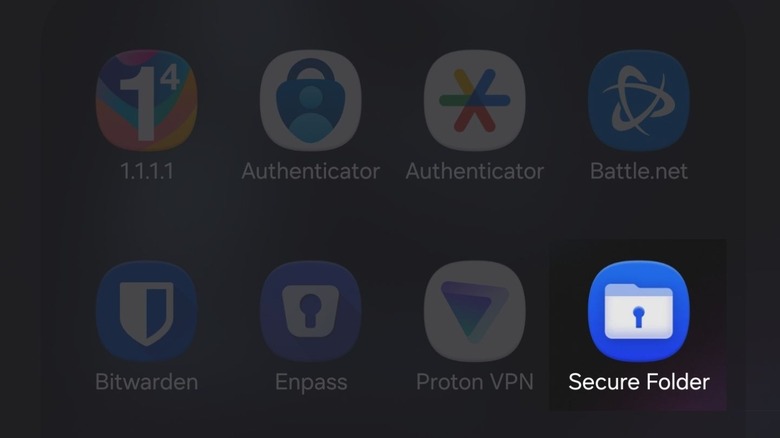
Once installed, the Private Space or Secure Folder icon will appear at the bottom of your app drawer. You can unlock it by opening it up and entering your unique password, pin, or pattern. There should be an option to re-lock again when you want to close it. But in both cases, there’s a way to hide the icon from prying eyes. Granted, even if someone knows they’re active, they cannot gain access without the security details, so that’s a plus.
To hide Private Space on Android (Pixel) open the app drawer, tap Private Space and unlock access. Then, tap the gear icon or settings, and under Hide select the ‘Hide private space when locked’ option. The app icon and private area will hide the next time you lock up. On Samsung, navigate to Settings > Security and Privacy > More Security Settings > Secure Folder and disable the toggle next to Add Secure Folder to Apps Screen. You’ll be asked to confirm, tap Hide and it’ll no longer be visible in the apps drawer.
Understanding the permissions problem on modern smartphones

It’s important to note the private area is walled off from the core profile, user apps, and data. Yes, you can transfer files to it, but back and forth communication isn’t open. That’s beneficial for preventing data harvesting practices, data sharing, and app permissions. When a new Android app is installed it often requests “permissions” access to various elements of the phone, including software, hardware, and other systems. For example, a camera app will request access to the front and rear cameras, but also the file storage system to save, edit, and modify photos captured or shared.
Some apps will request broad access to elements they don’t need, even acquiring dangerous permissions to your contacts, messages, other hardware like your microphone, and beyond. Social media and invasive privacy apps, Candy Crush even, can, and sometimes do, potentially access sensitive data you have stored on your phone. That’s why there are a few Android app permissions you should never allow or avoid at all costs. The app permissions features built into Android are designed to give you more granular control over this. There are also indicators for when apps access these areas of your phone, that’s why there’s a blue dot on your Android’s phone screen sometimes. Or a green one.
But the absolute best way to prevent unauthorized access is to segment the questionable app. Private Space and Secure Folder make that possible. You can install apps you want to keep private on one of the two spaces, and keep questionable apps on the other partition. Best practice is to keep the stuff you want secure and private on the locked off storage.
